-
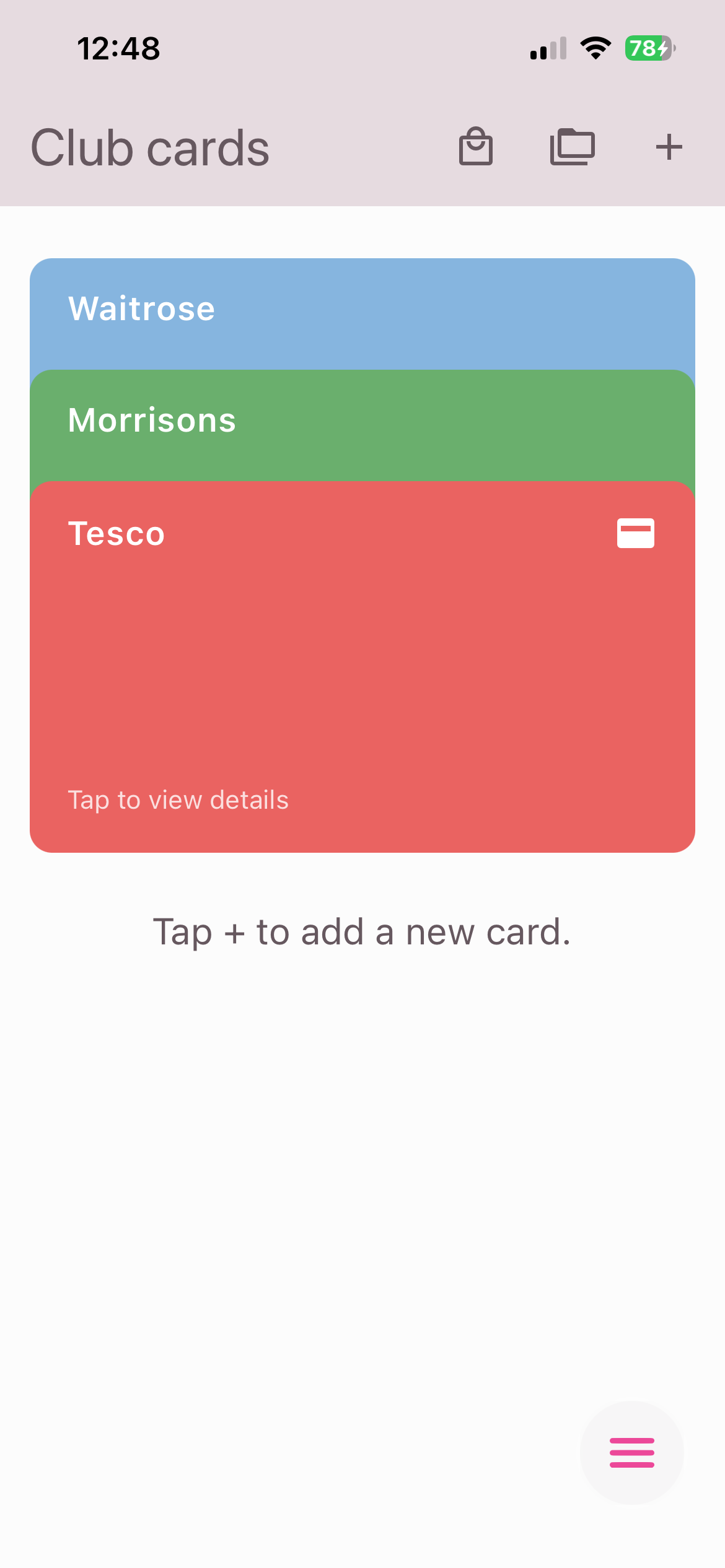
Get to the Club cards Page: Tap Menu
Toggle Button (☰) at the bottom right corner of your screen
and select "Club Cards" from the menu ().
-
Add Club Cards: Tap the "+" button at the
top bar to add a new club card. Follow the on-screen
instructions.
-
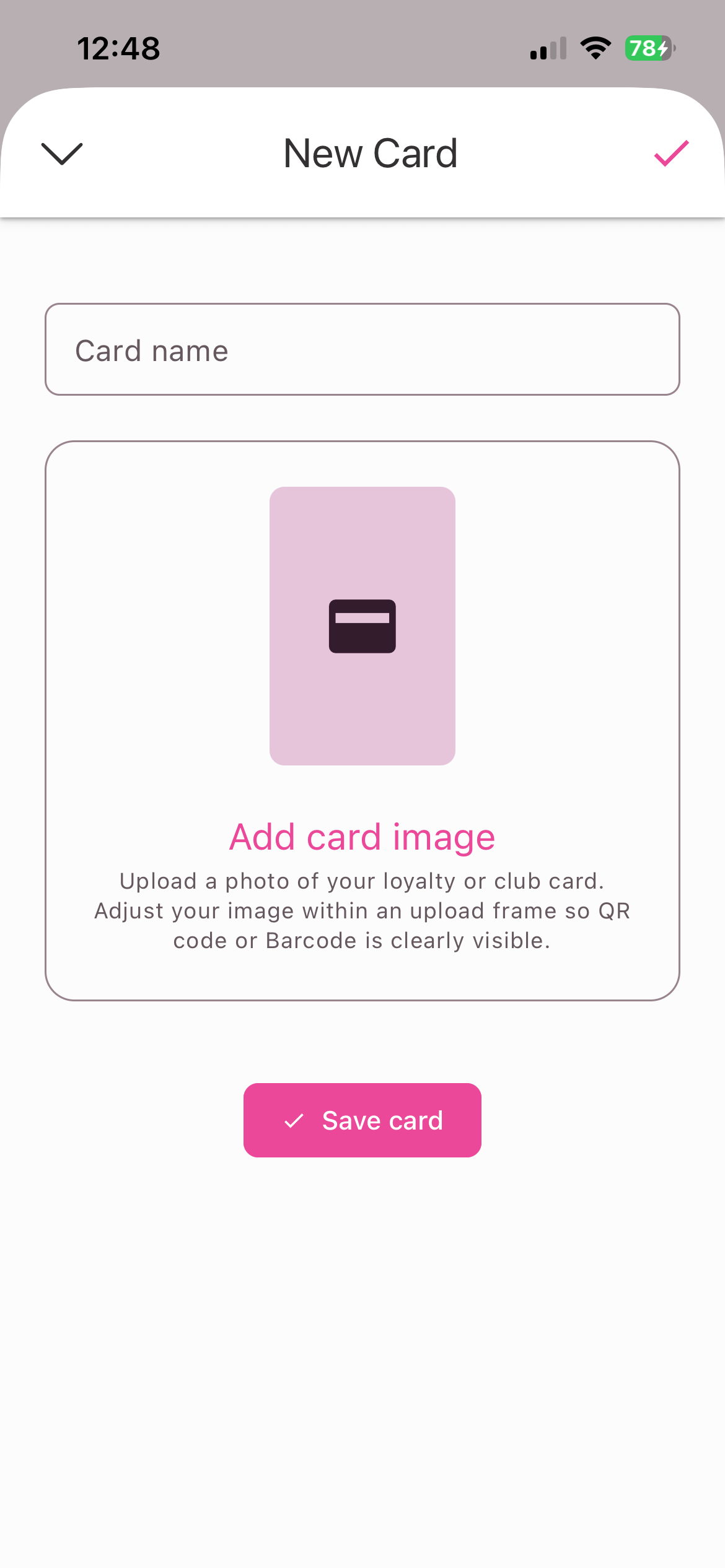
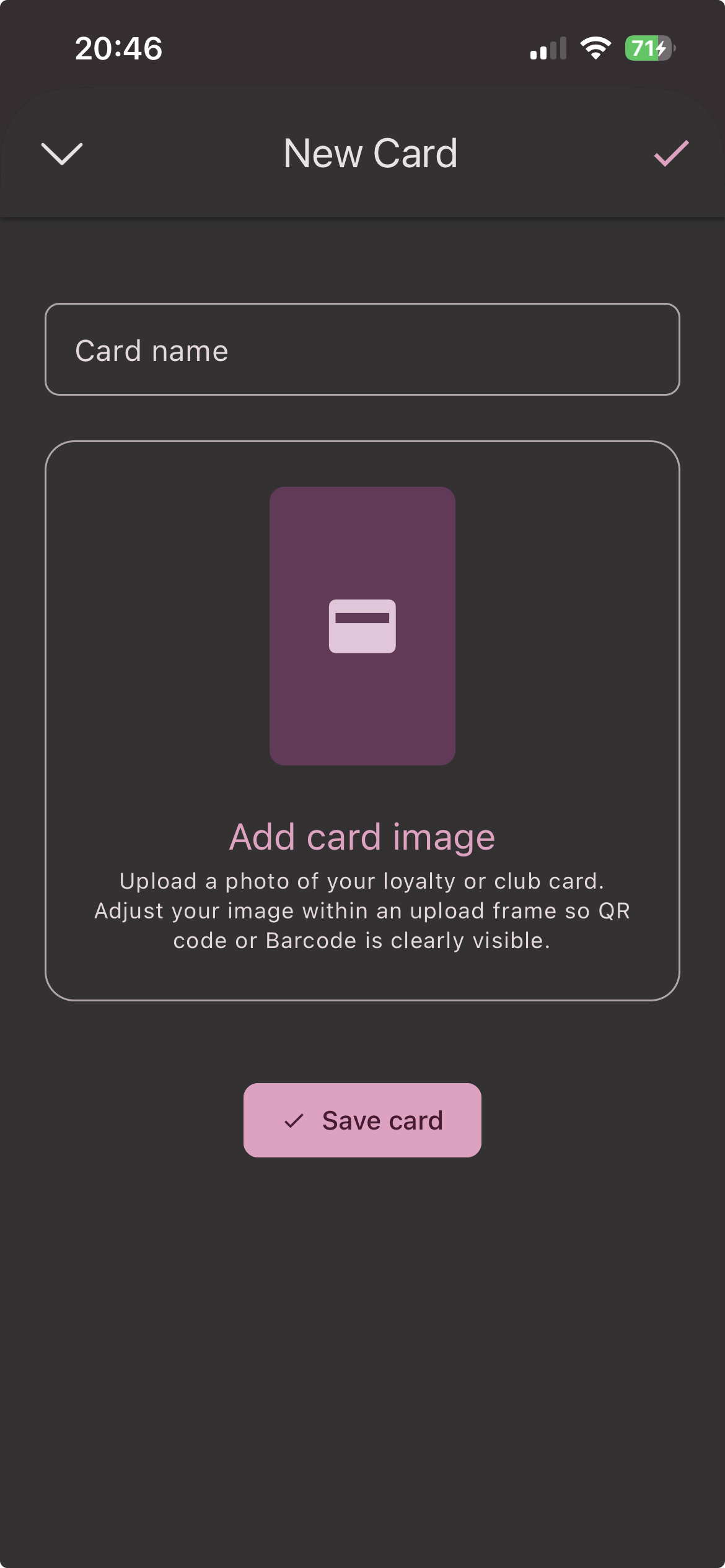
Upload card: Name your card, and upload
the photo of your card so your bar code or QR code is always
at your fingertips when you need it.
-
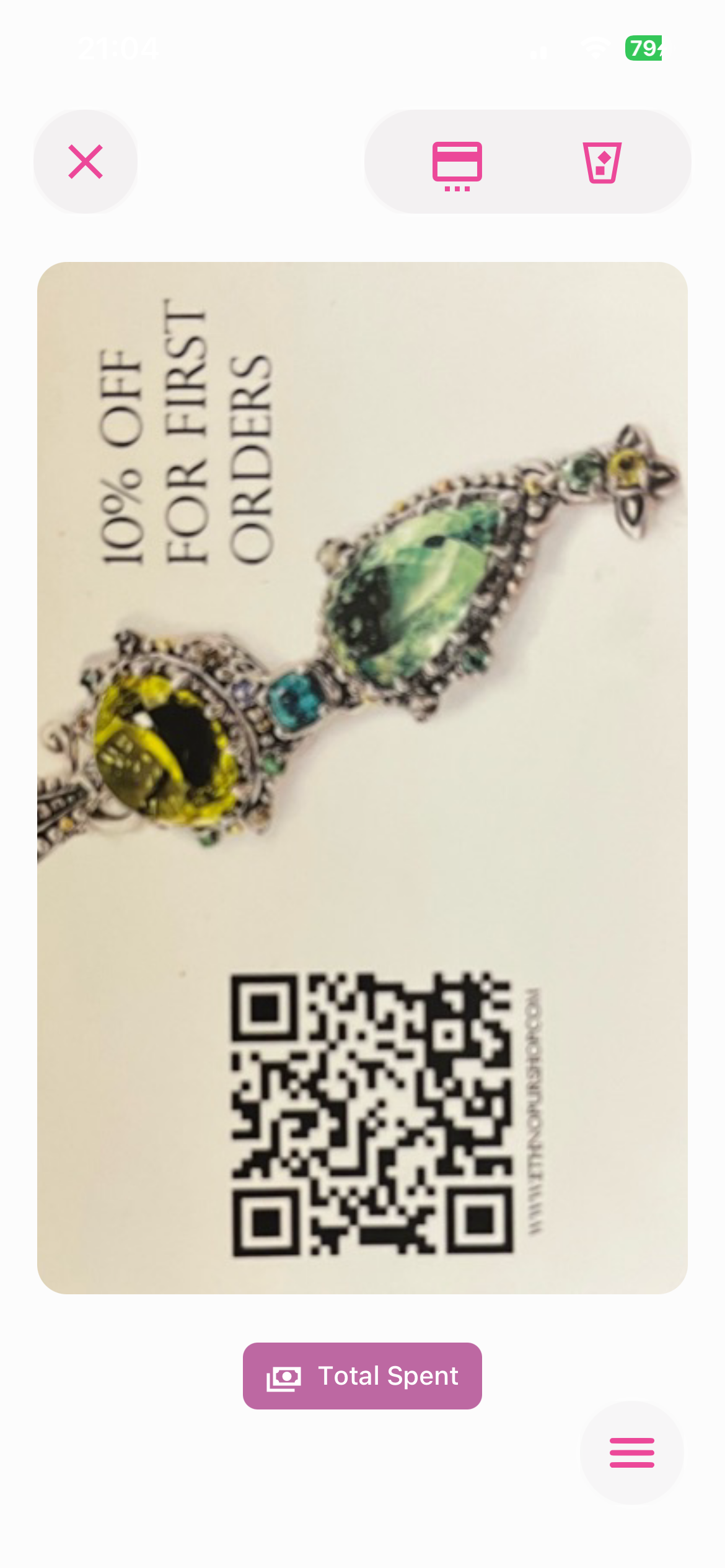
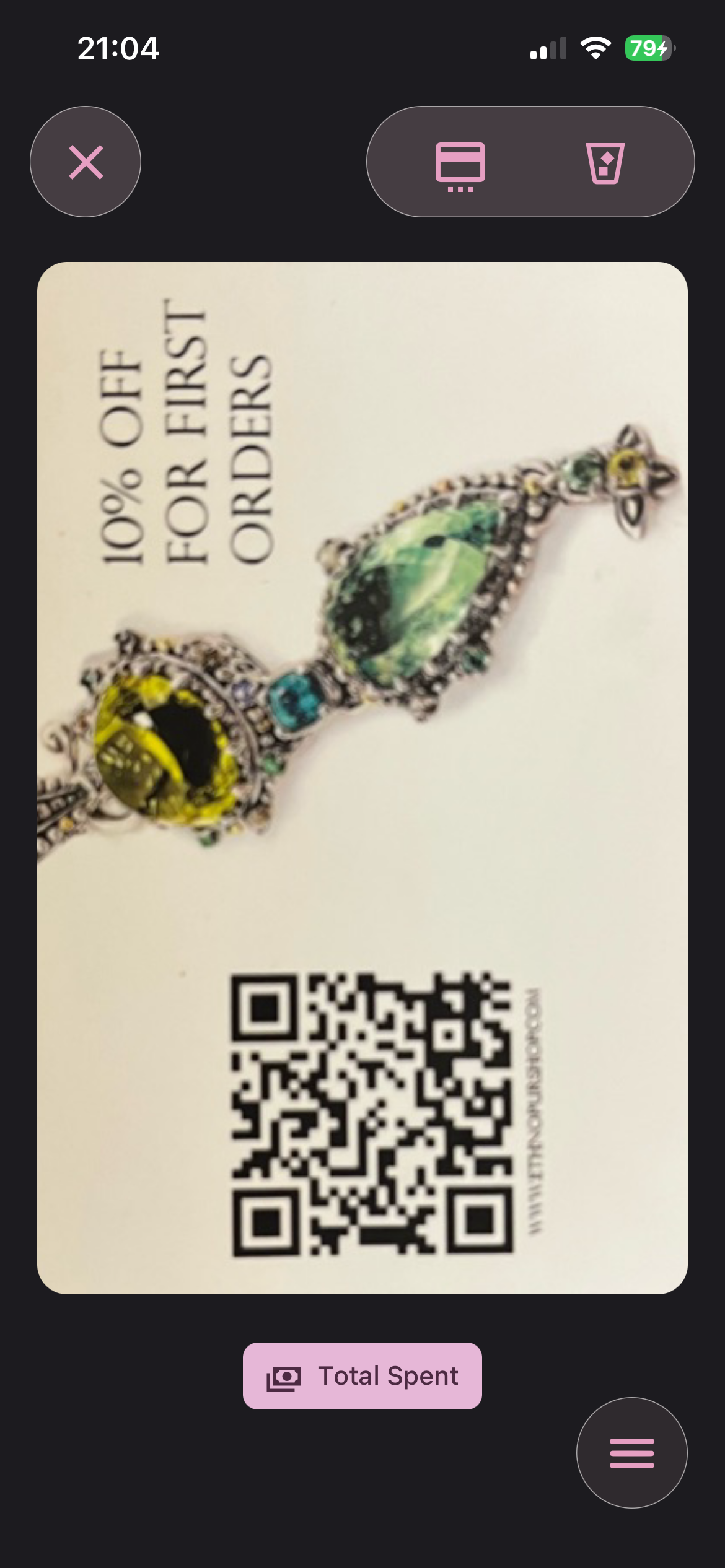
Use Cards: Tap on any card in your stack
to display its barcode or QR code at the checkout.
-
Remove Cards: Press the Bin button () to remove a card from your stack.
-
Edit Cards: Tap the Dotted Card icon
() to edit a card. You can change the name of the card or
replace the photo.