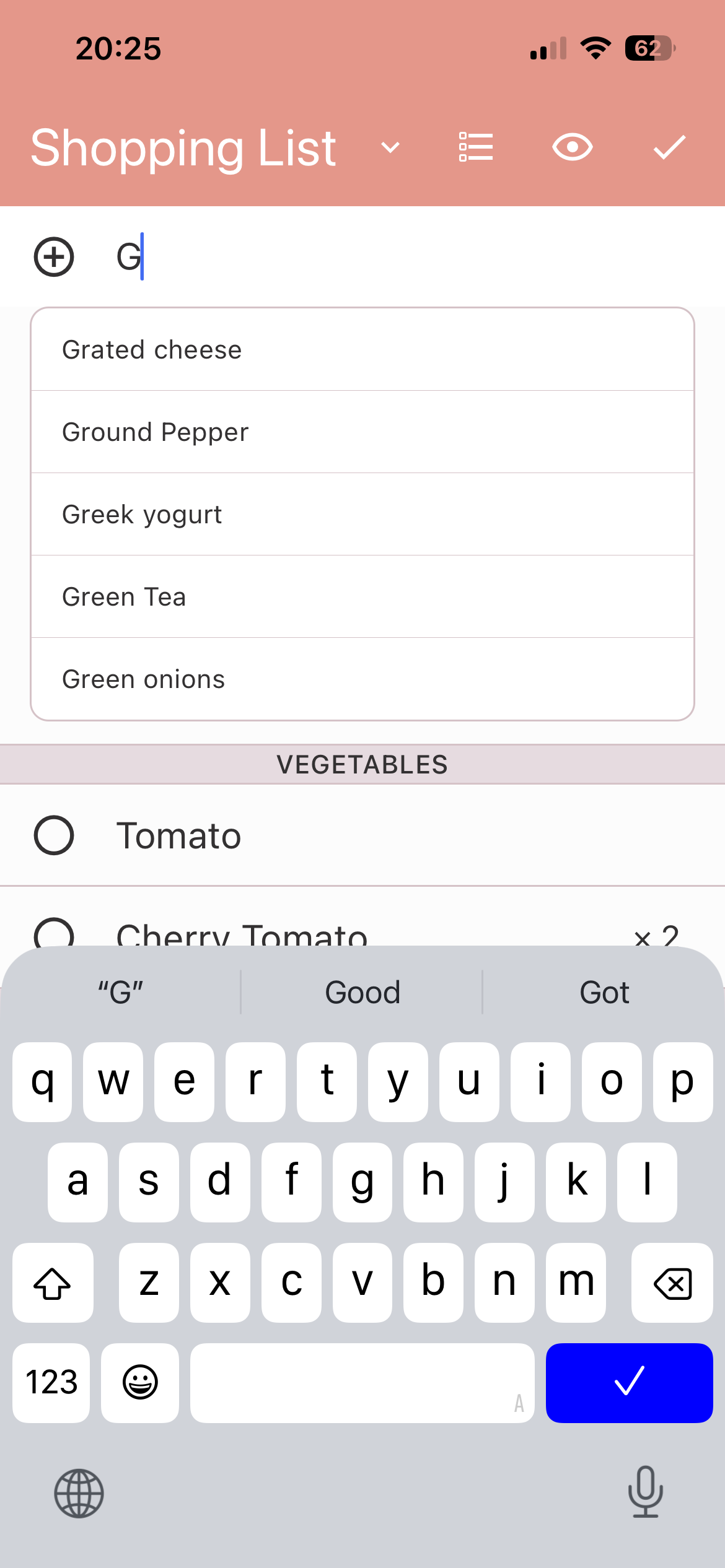
Add new item: Tap '+' icon at the right
corner of the top bar or simply tap on empty area to add a
new item. Tap '✔️' at the right corner of the top bar or at
the bottom right corner of your keyboard to submit the new
item.
Choose item from prompts: At every new
entry your item (if new) will be stored in Product Library
so you can see prompts next time and speed up your list
creation.
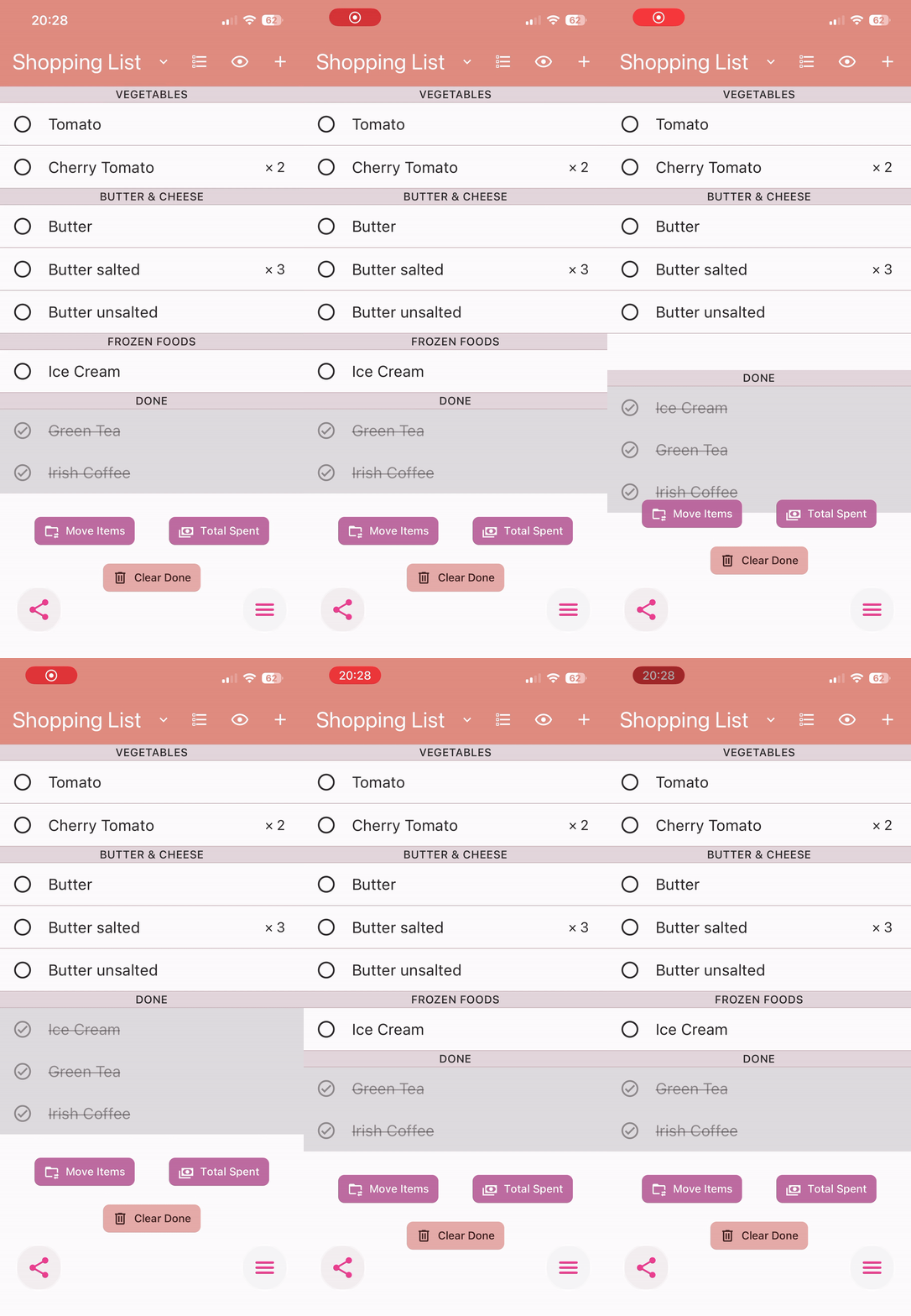
Check off items: Check off your items to
mark them as done. Simply tap on a circle at the left of an
item.
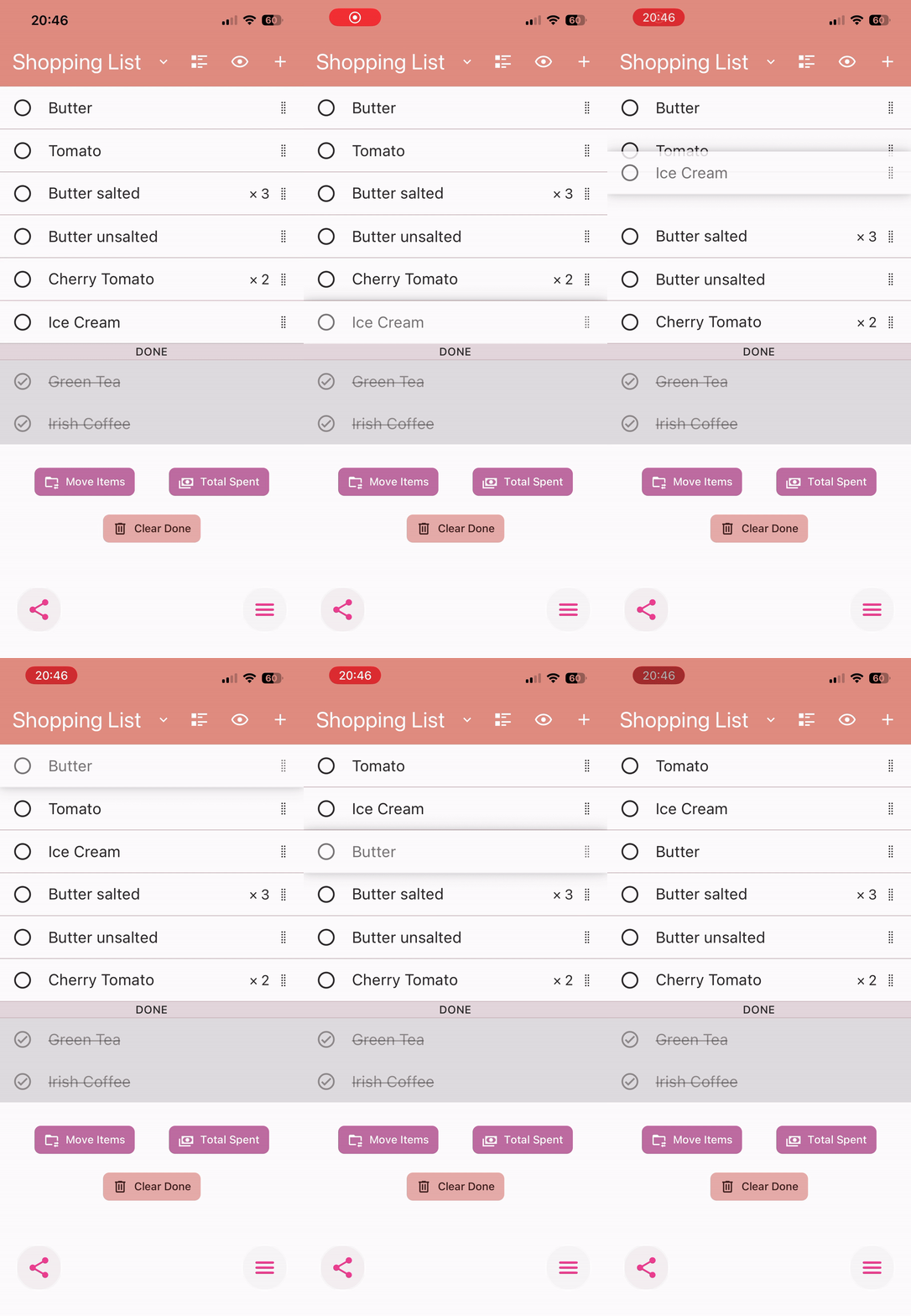
Toggle views: Flip between Category/Aisle
view and Simple List view. While in Simple List view change
order of items by dragging (long-press on an item's handle
at the right corner to start dragging).
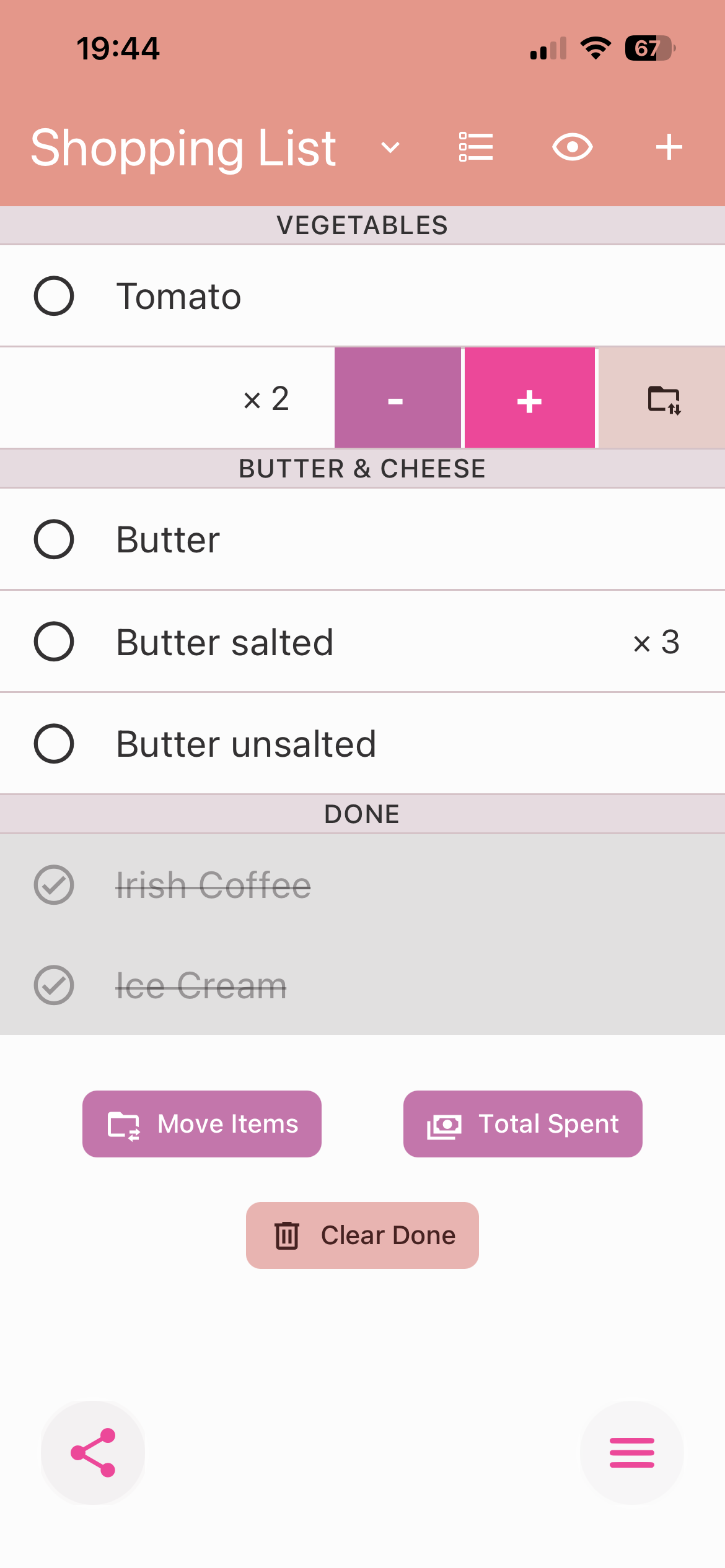
Swipe left or right to see new options:
Swipe left. Tap "+/-" buttons to set a required quantity for
an item. Tap on "folder with arrows" button to assign an
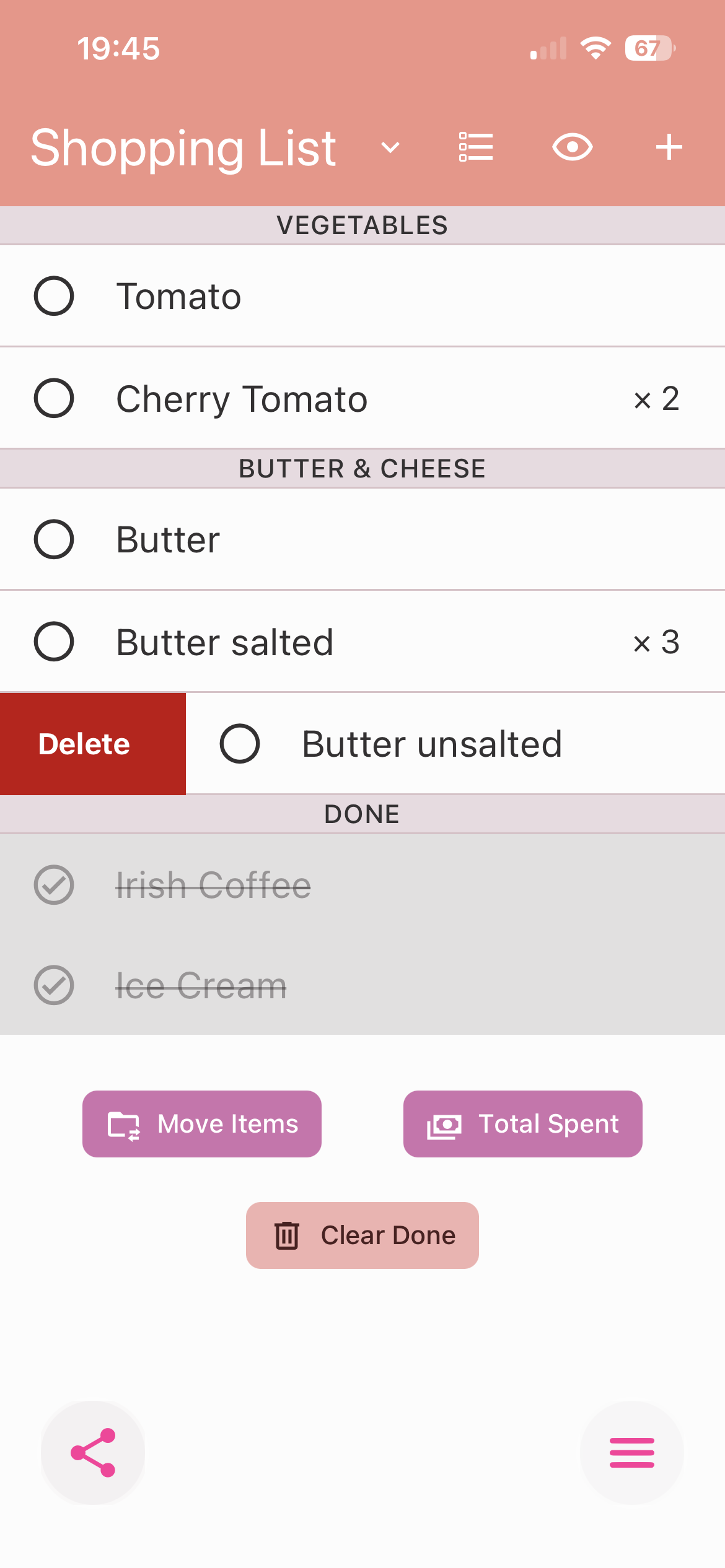
item with a Product Category. Swipe right to delete an
item.
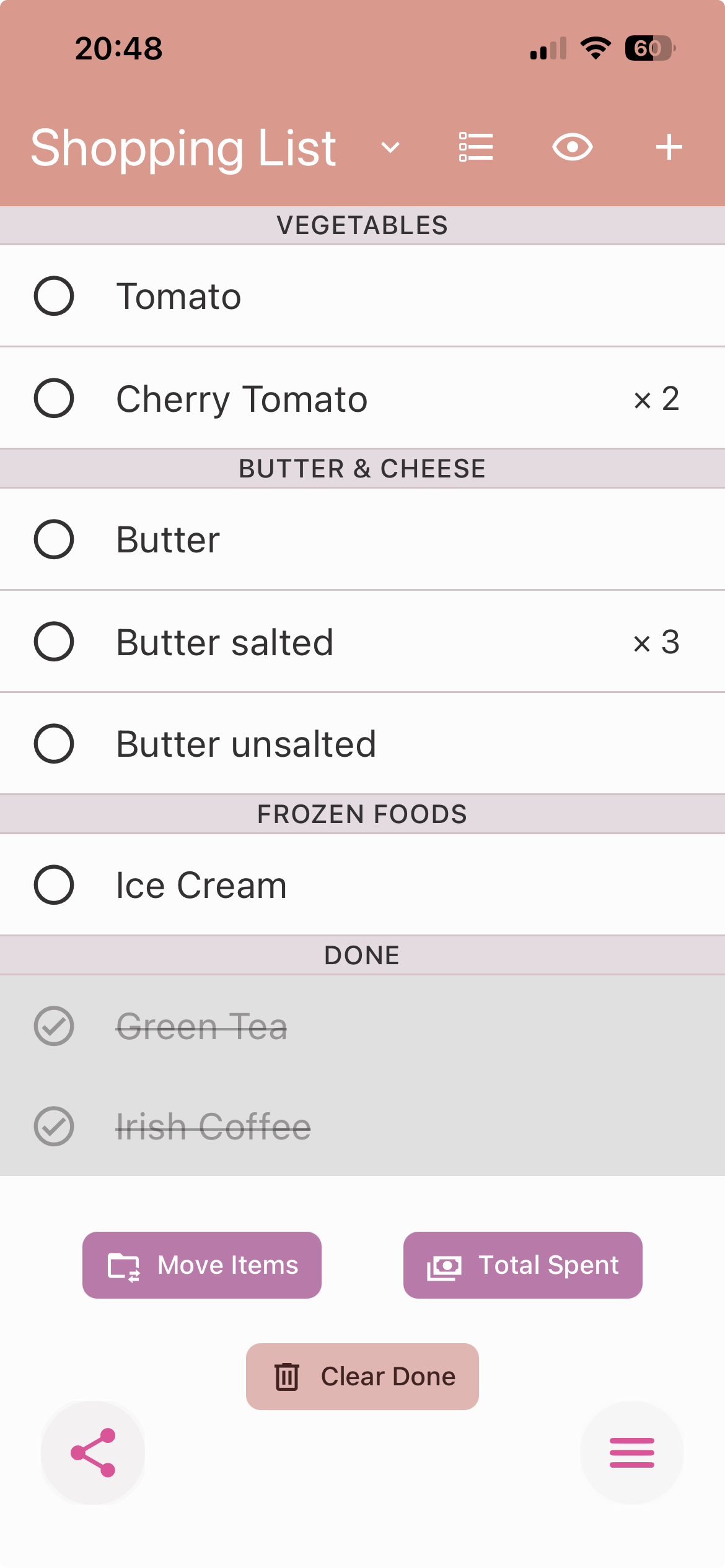
Move all items: Press the button "Move
Items" at the bottom of your List content and choose
shopping list you want to move your items to.