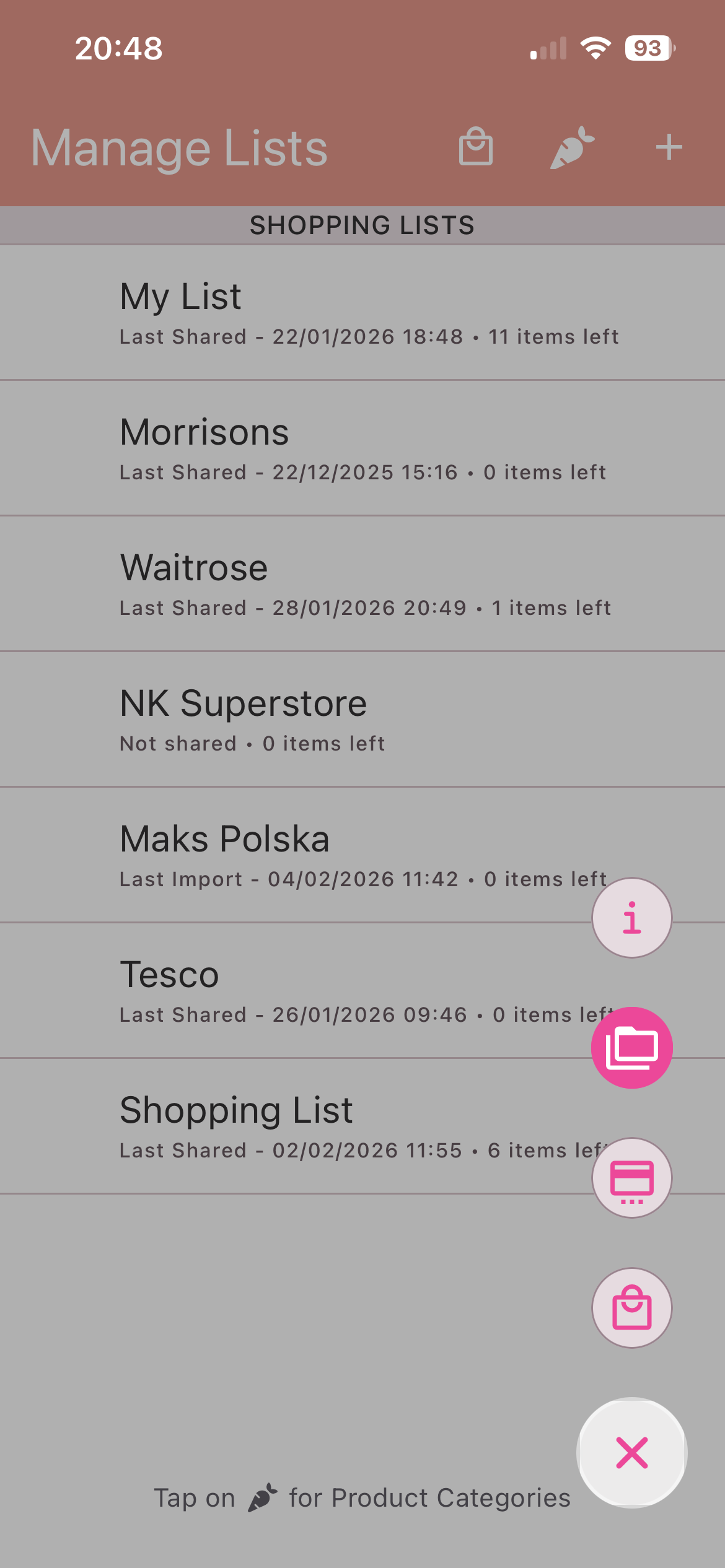
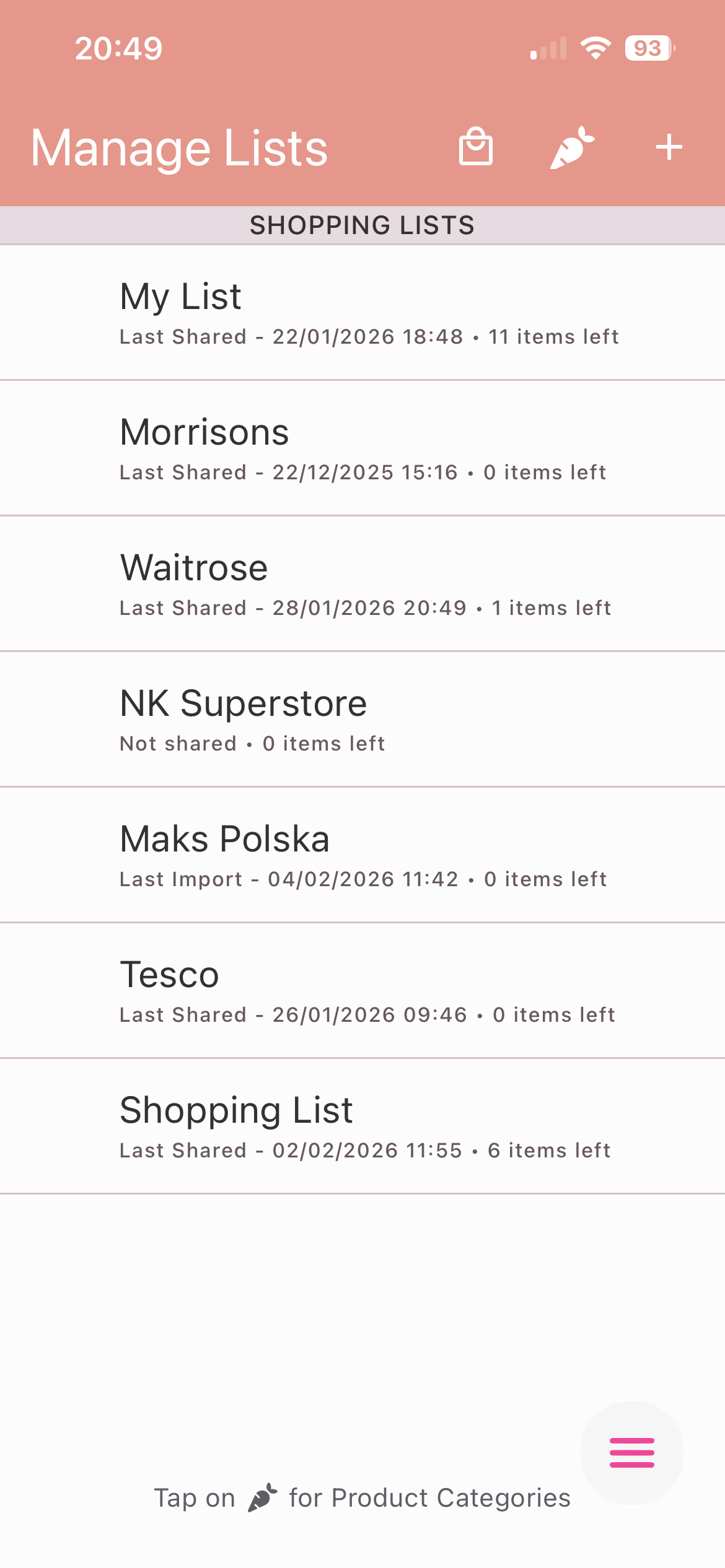
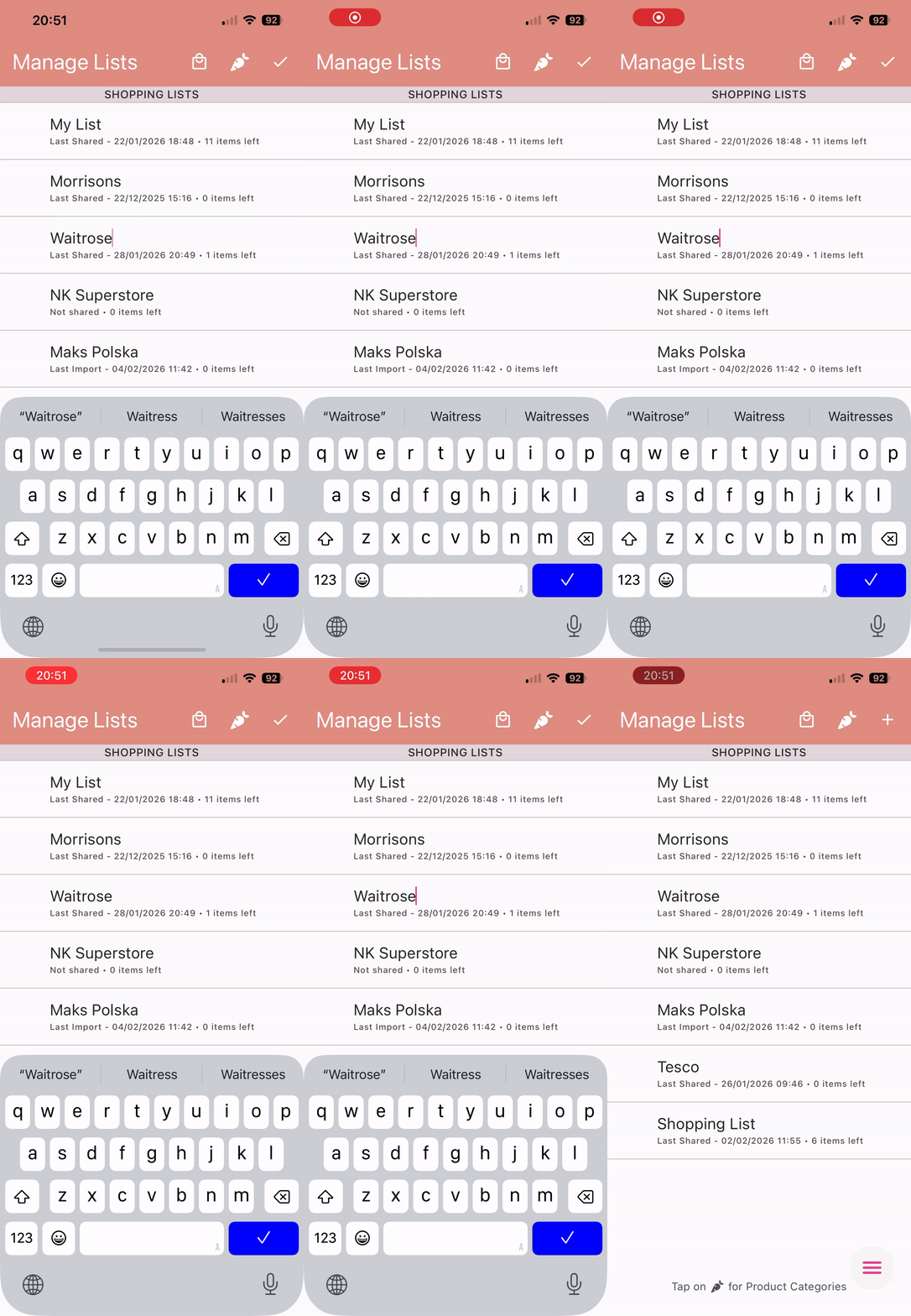
Create Multiple Lists: Easily build and
manage separate lists for groceries, parties, or special
projects to keep your shopping organized.
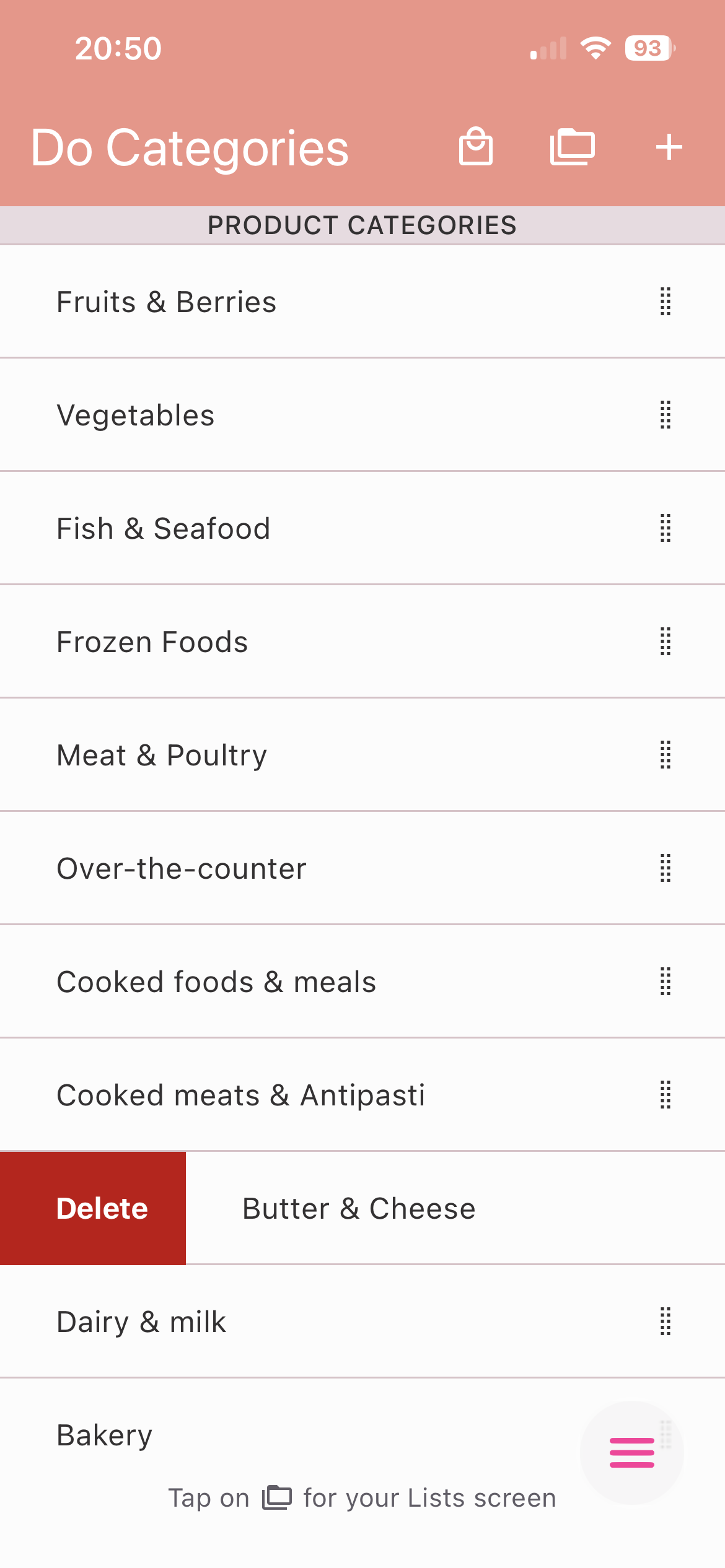
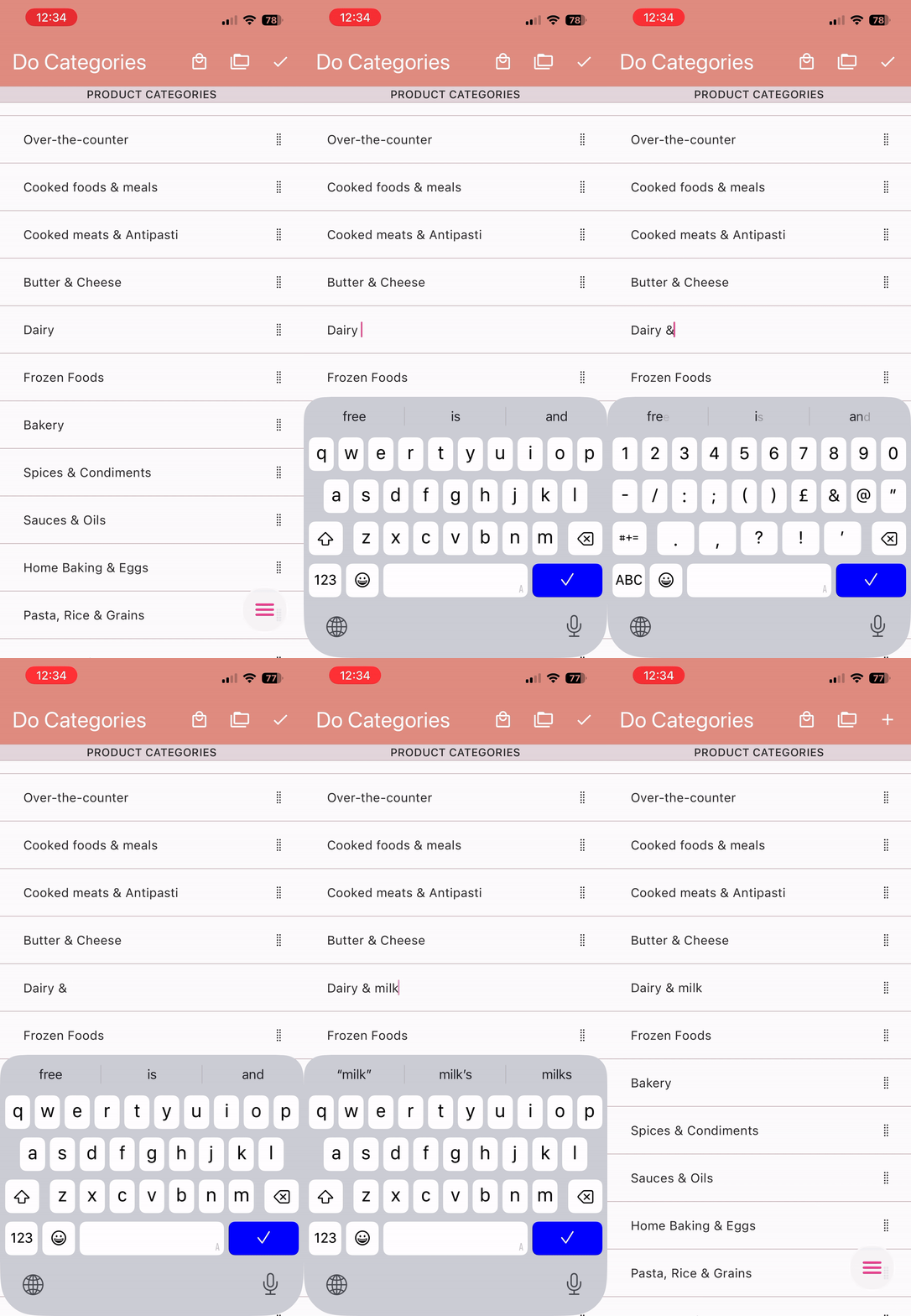
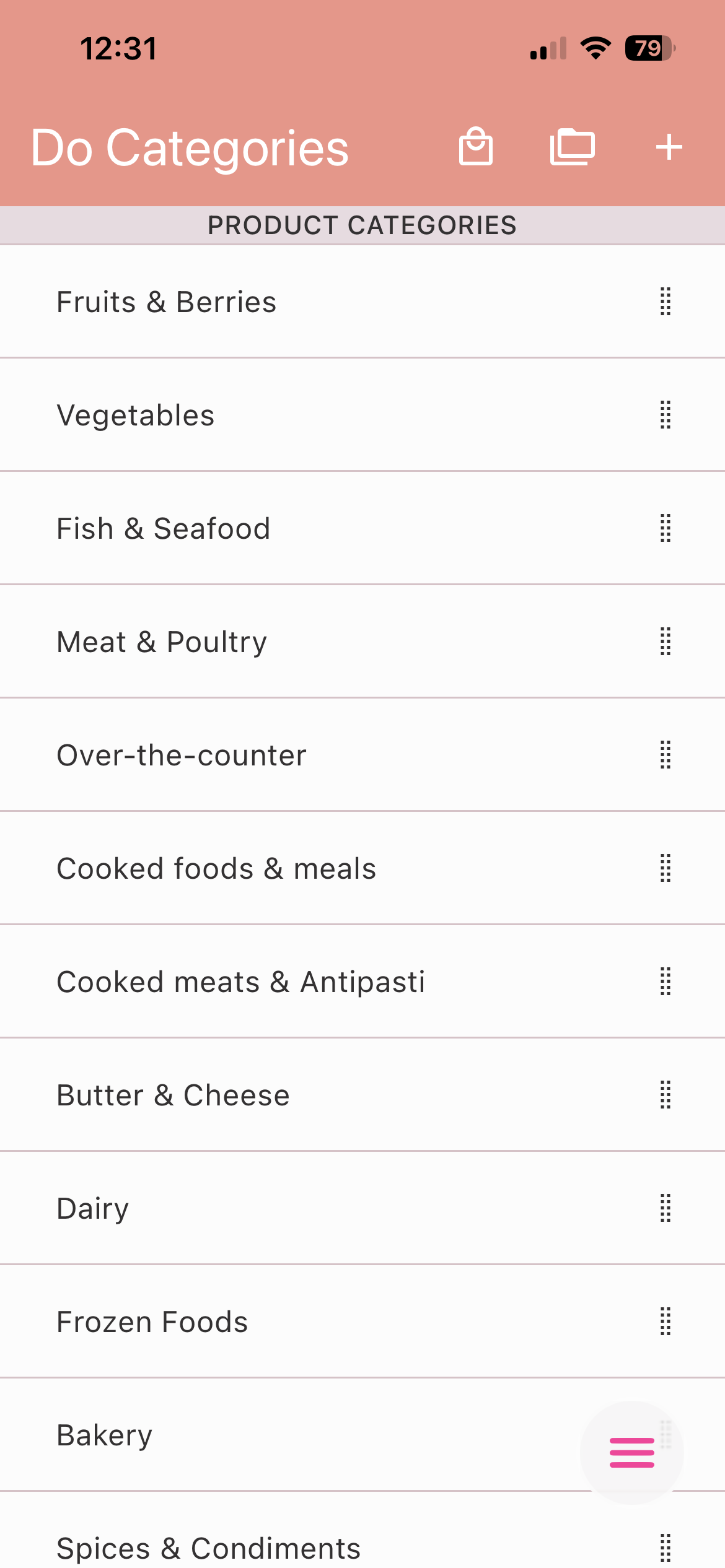
Customize Product Categories: Create
unique categories or aisles that perfectly match the layout
of your favorite supermarket.
Toggle Views Seamlessly: Effortlessly flip
between your shopping lists and product categories views to
gain complete control over your multiple Lists or
Aisles/Categories.
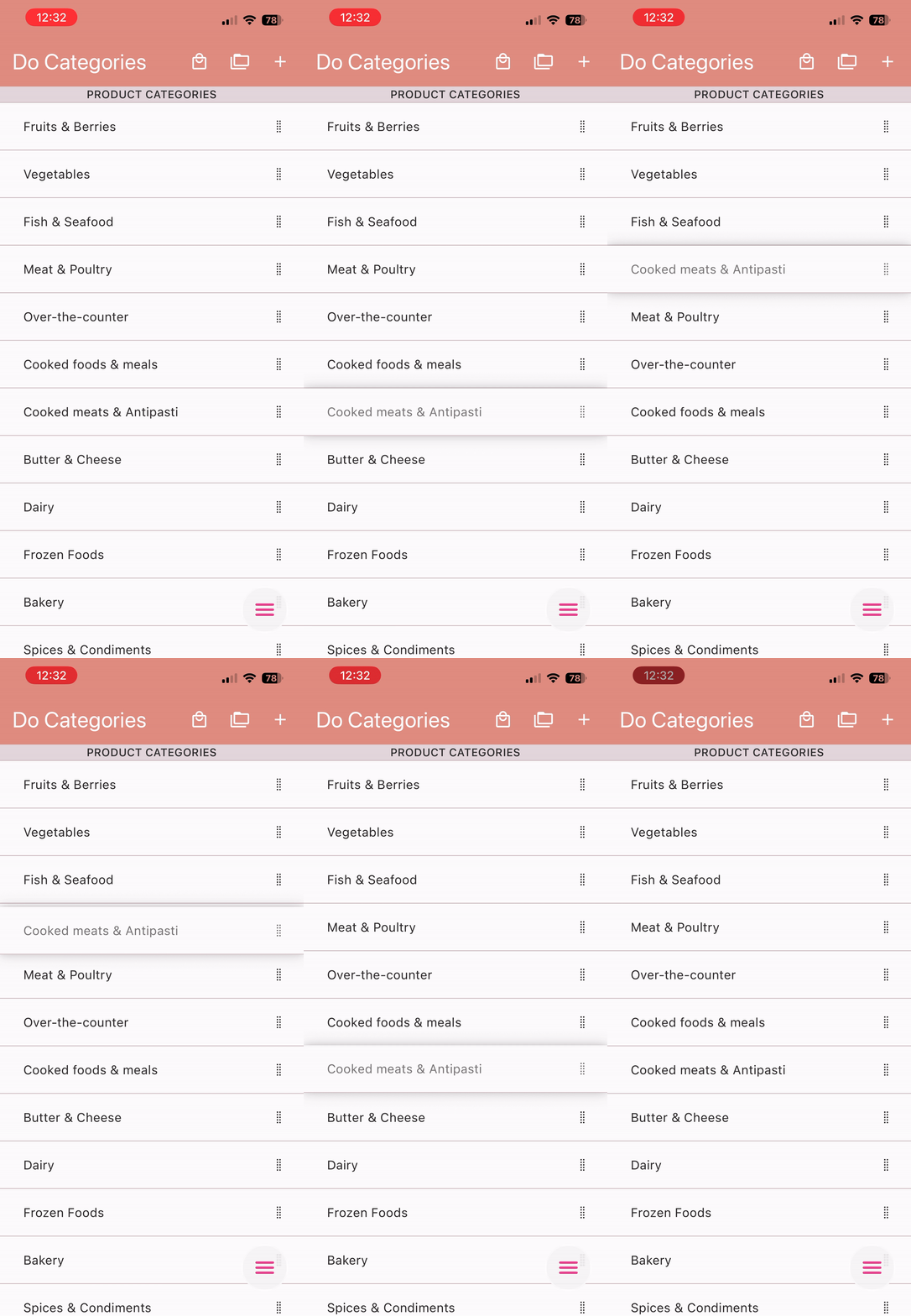
Reorder Aisles for Efficiency: Arrange
your customized categories to align with your walking path
in the store, ensuring a faster and smoother shopping
experience.
Quick Editing & Renaming: Keep everything
up-to-date with a simple tap. Instantly rename any list or
product category to suit your current needs.
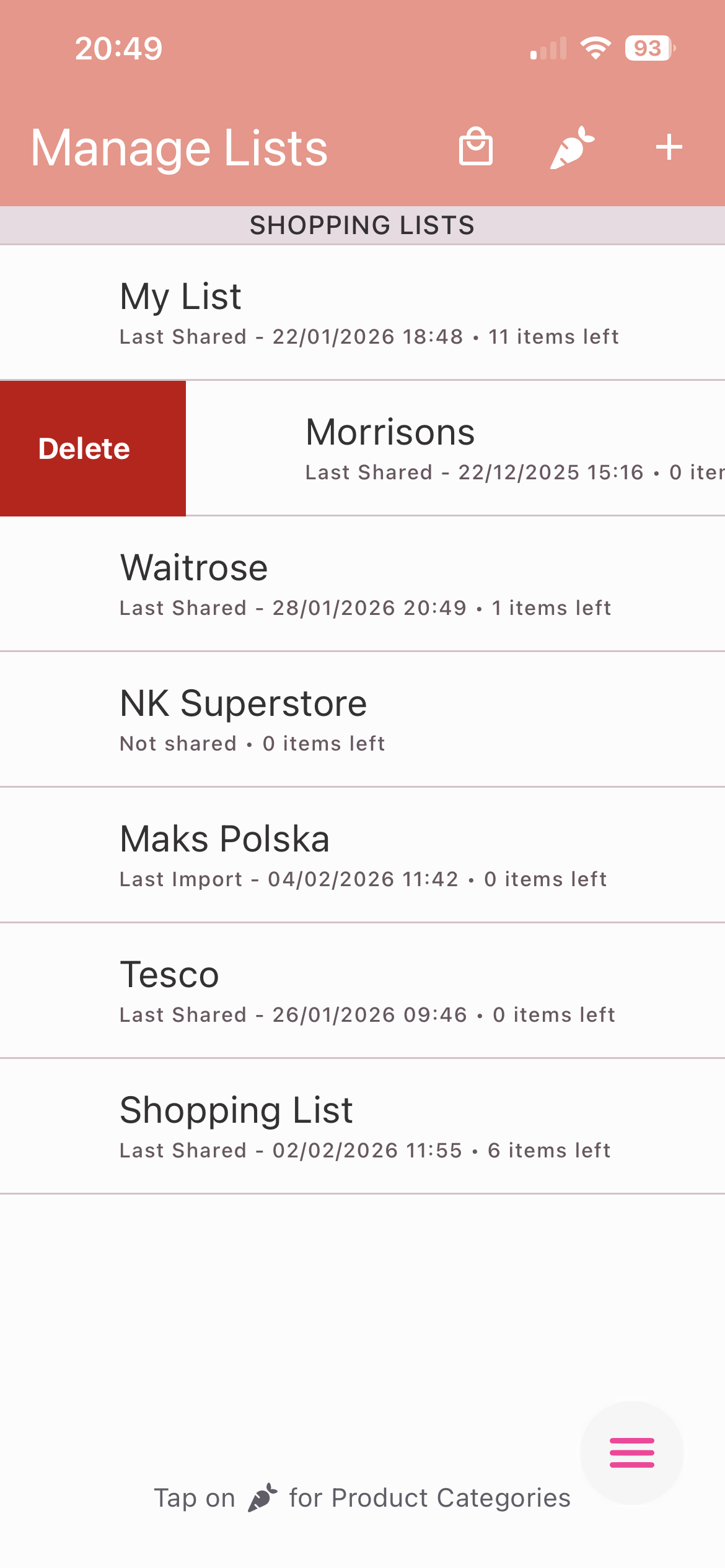
Effortless Deletion with a Swipe: Swipe to
quickly remove outdated lists or categories you no longer
need, keeping your app clean and clutter-free.